Reclaim your day,
reclaim your attention.
Locks that hold — even against yourself.
Available on iOS and Android
Free to start · Pro free for 2 weeks, then $4.99/year
Locks that actually hold.
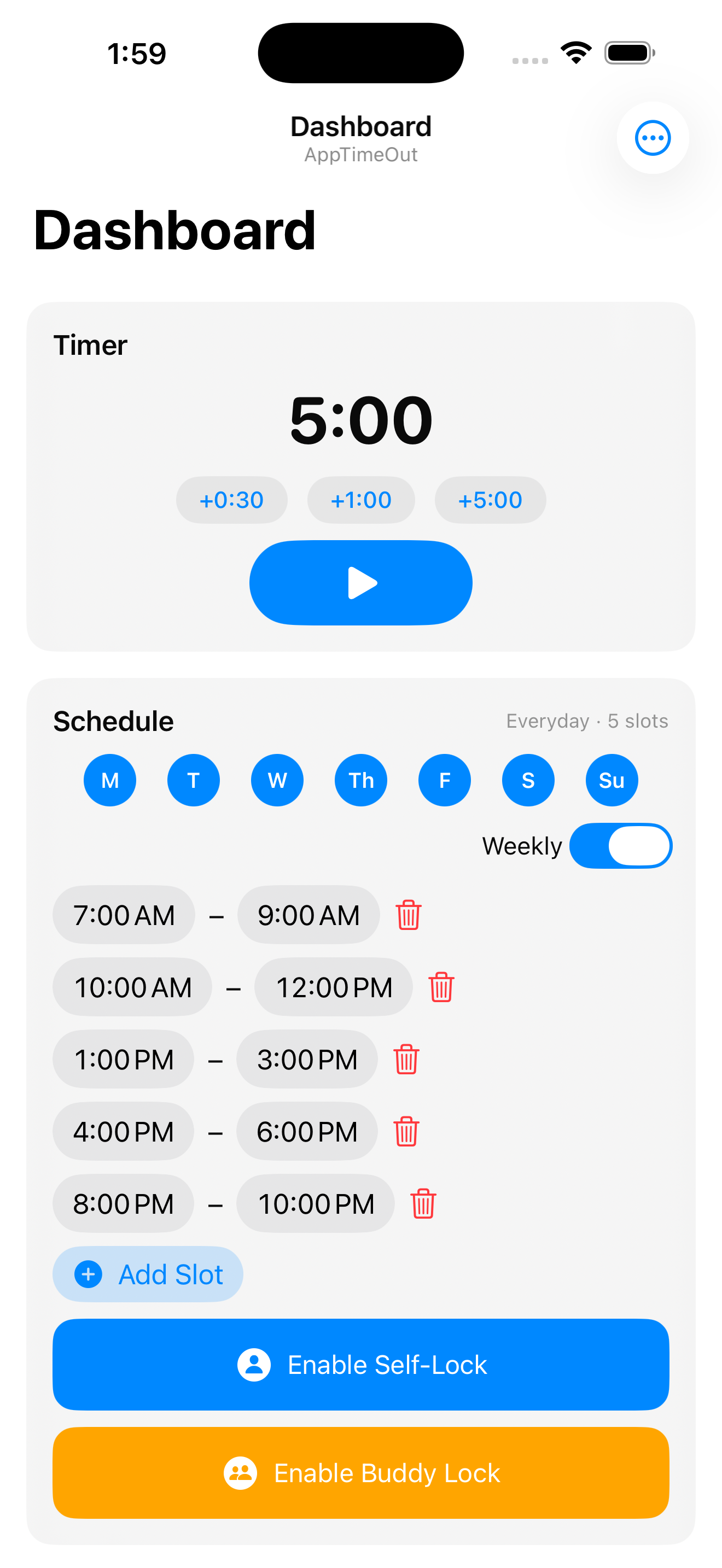
Set a Timer Lock for a quick focus session or configure a recurring Schedule Lock for your mornings, work hours, or bedtime. Once active, the lock holds — even if you change your mind.
- ⏱ Timer Lock — block for any duration, clears automatically
- 📅 Schedule Lock — recurring daily blocks on your schedule
- 🔒 Self-Lock — you set it, iOS enforces it
Blocking that cannot be bypassed.
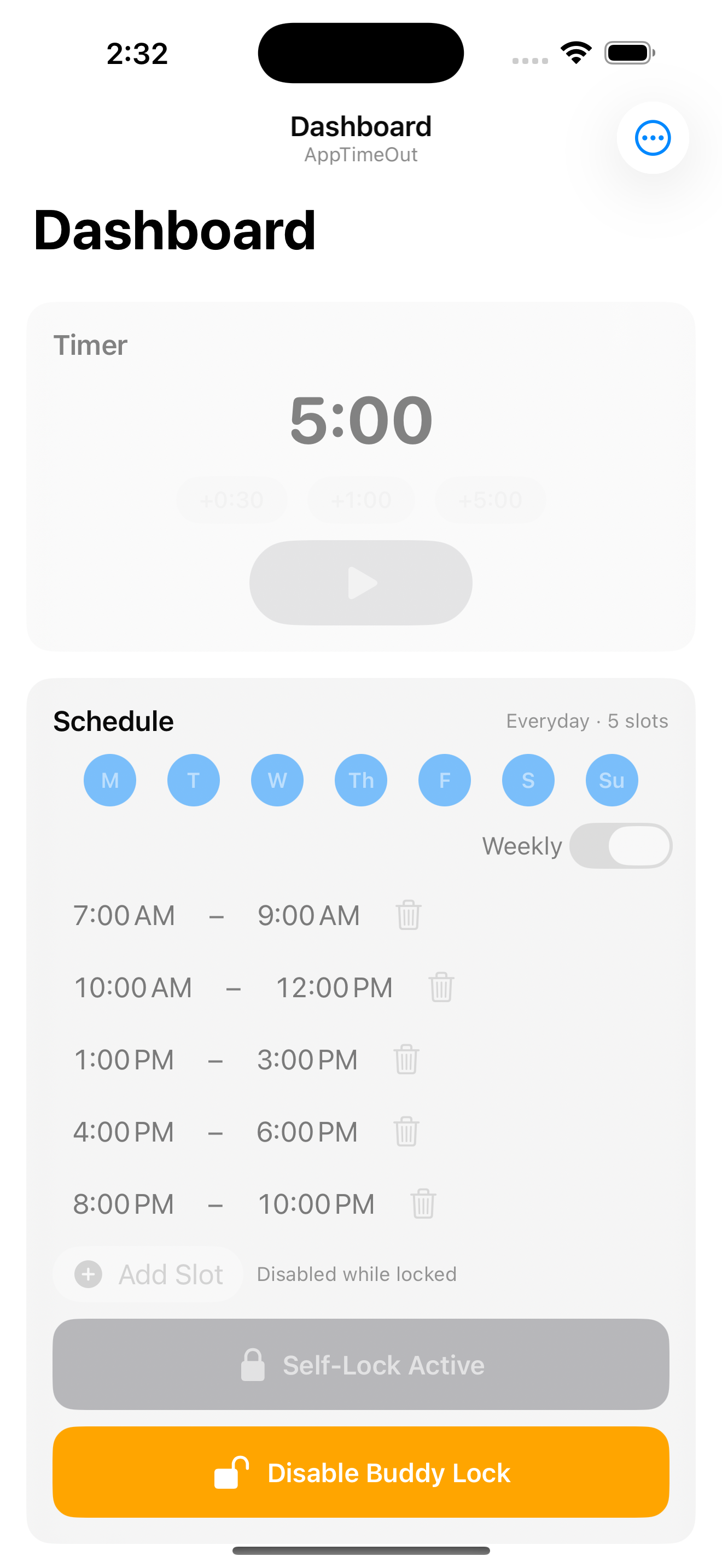
Struggling with "just 5 more minutes"? Enable Buddy Lock and assign a trusted friend or family member. Only their 4-digit code can end the lock early — willpower is no longer the only thing standing between you and your phone.
- 🤝 Add up to 3 accountability buddies
- 📧 Unlock code delivered to your buddy via email
- ⏰ Codes expire after 24 hours for security
Who is it for?
Anyone who wants to spend less time on their phone — and actually stick to it.
 📚 The Student
Harry sets a 2-hour Timer Lock before every study session, blocking Instagram and TikTok. When the timer ends, apps unlock automatically — no willpower needed.
 💼 The Professional
Sarah schedules blocks from 9 AM–12 PM and 1 PM–5 PM, Monday–Friday. Distracting apps lock automatically during work hours and unlock at lunch.
 🤝 The Committed Pair
James enables Buddy Lock with his friend. Now only his friend's code can unlock the apps early. No more sneaking back to social media.
How to use
AppTimeOut
Four simple steps to take control of your screen time — and actually stick to it.
Step 1
Create a schedule lock.
Choose the lock type that fits your routine. Both kick in instantly once activated.
- Timer Lock — use + / − to set a duration, tap Start Lock. Lifts automatically when time is up.
- Schedule Lock — pick days and time slots, toggle Weekly to repeat. Set it once and let it run.
💡 Free: Timer Lock + up to 5 days / 4 slots | Pro: All 7 days · unlimited slots
Step 2
Set up your block list.
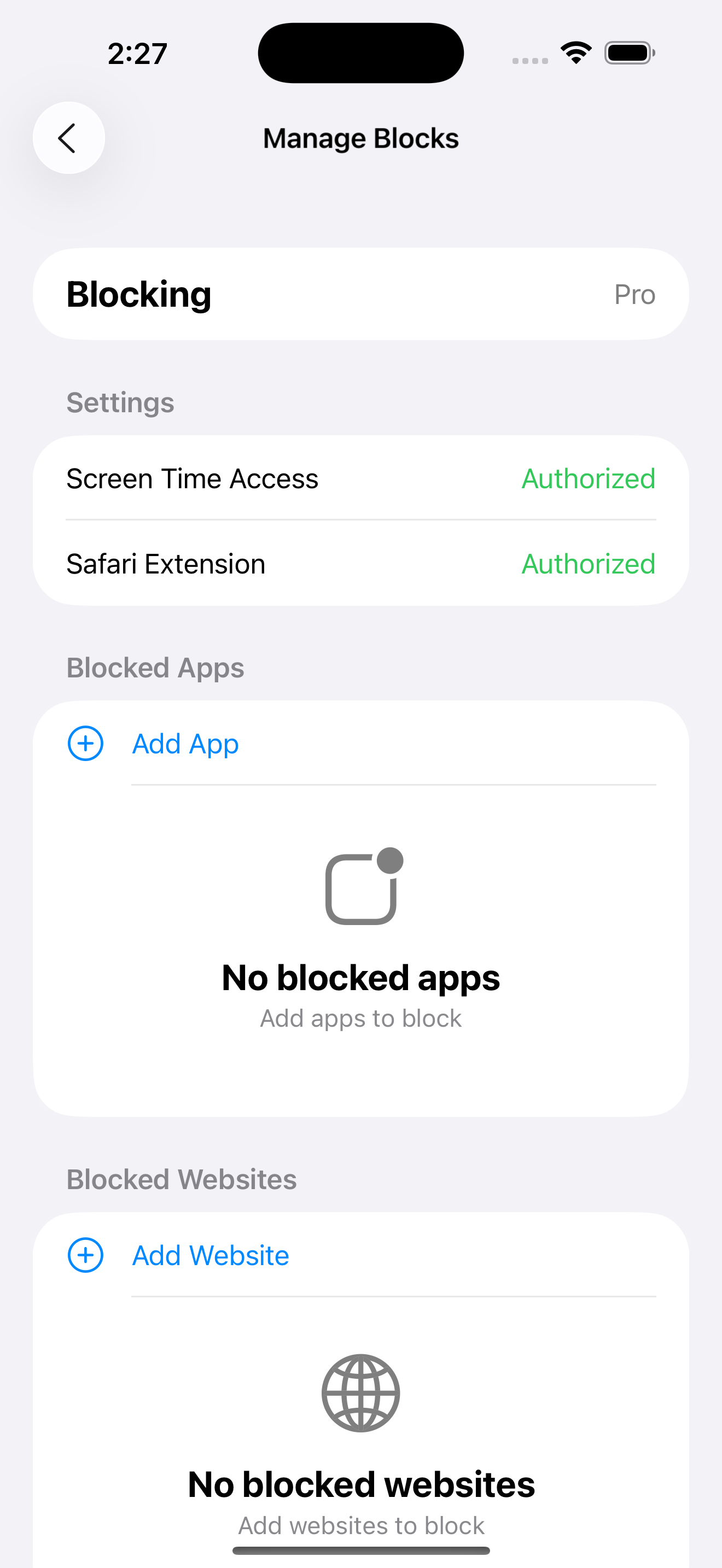
Tap the ⋯ menu → Manage Blocks and add the apps and websites you want to restrict. You can block social media, games, news — anything that pulls your focus.
- Enable Screen Time Access and Safari Extension when prompted on first launch
- Tap Add App to pick from the iOS app picker
- Tap Add Website and type a domain like
instagram.com
- Swipe left to rename or delete any item
💡 Free: Up to 3 apps & 3 websites | Pro: Unlimited apps & websites
Step 3 — Pro
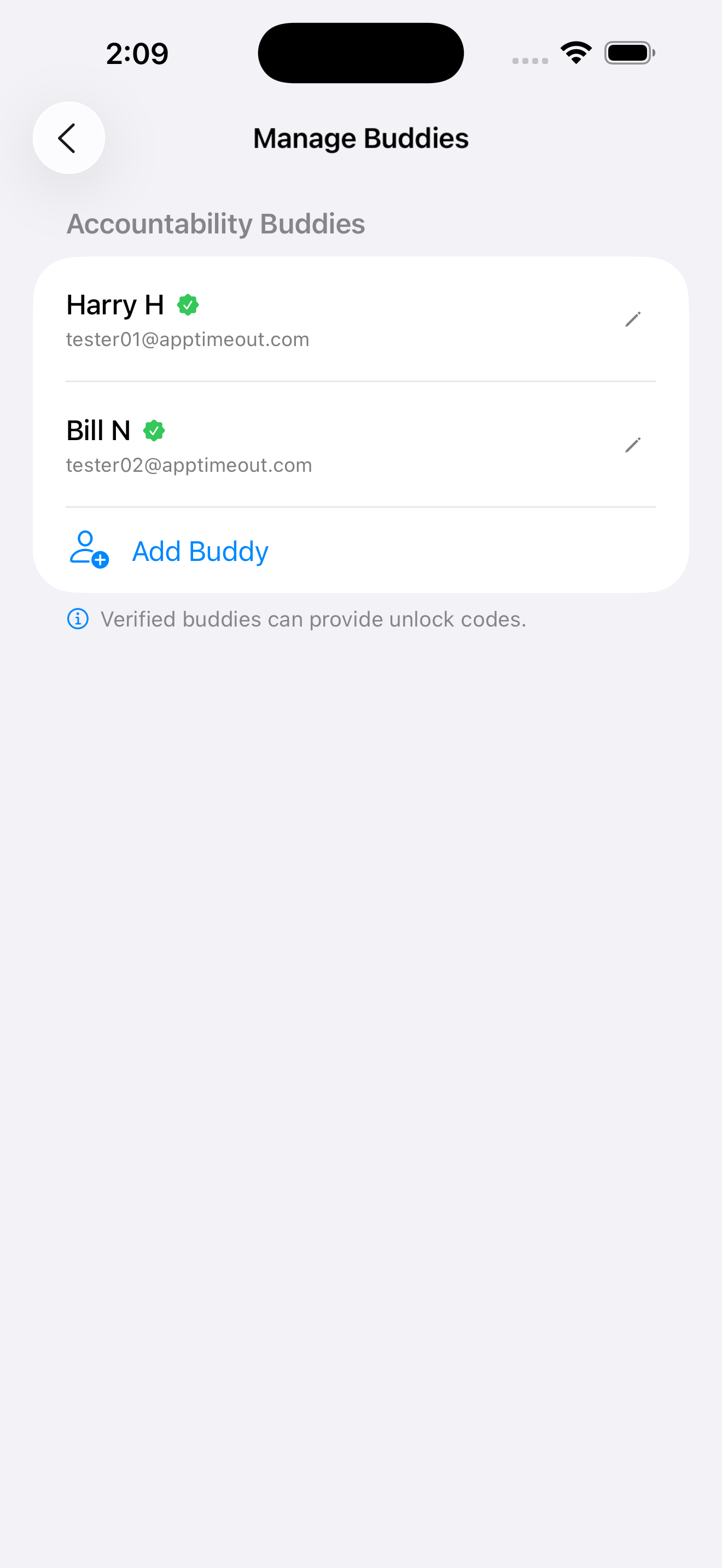
Add a buddy.
Struggling with "just 5 more minutes"? Buddy Lock hands the unlock key to someone you trust — so willpower is no longer the only thing standing between you and your phone.
- Go to ⋯ menu → Manage Buddies → Add Buddy
- Enter your buddy's email — they'll receive a verification code to confirm
- Enable the Buddy Lock toggle on any lock card
- Add up to 3 buddies — friends, family, or a study partner
Step 4
Start a lock.
Once your block list is ready and your buddy is set, activate a lock. Blocked apps and websites are restricted immediately — and stay that way.
- Tap Start Lock on the Timer or Schedule card
- The lock activates instantly across all blocked apps and websites
- With Buddy Lock on, only your buddy's code can end it early
Step 5 — Pro
Unlock with a code.
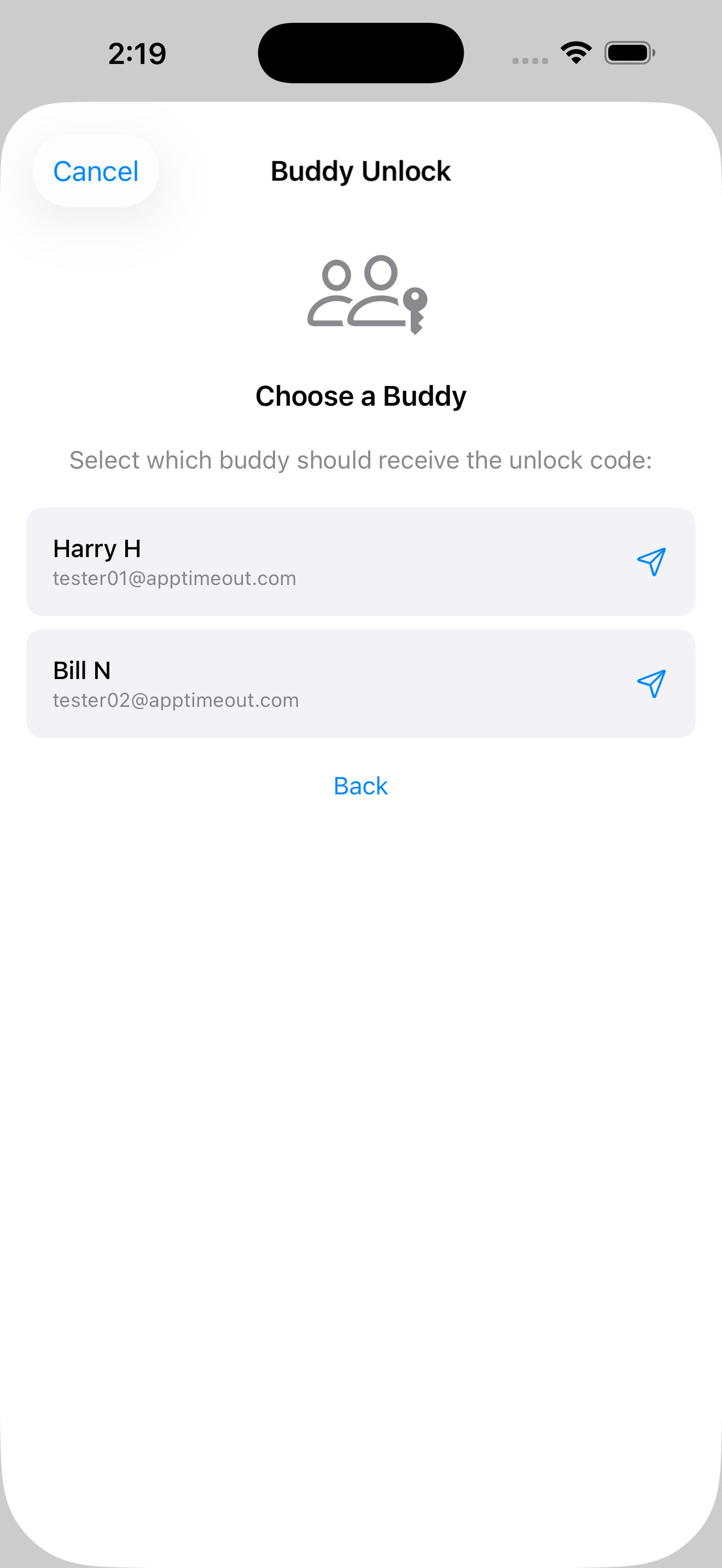
Need to end a lock early? Tap Request Unlock Code — your buddy receives a 4-digit code by email. Enter it in the app to unlock. Codes expire after 24 hours.
- Tap Unlock with Buddy Code on the active lock card
- Ask your buddy for the code they received by email
- Enter the 4-digit code to release the lock
Common questions
Why aren't my apps being blocked?
Make sure you've added apps to your block list before starting a lock, and that Screen Time permission was granted on first launch.
Does blocking work if I close the app?
Yes — blocking runs through iOS's Screen Time system, completely independent of the app.
Can I unlock early without a buddy?
Yes, for Timer Lock and Schedule Lock without Buddy Lock enabled. Once Buddy Lock is on, only your buddy's code can end it early.
Contact Us
We'd love to hear from you.